
WordPress powers about 43 percent of all websites on the internet, yet only around 43.4 percent of WordPress sites currently pass all Core Web Vitals metrics. That gap exists because many site owners publish content without paying attention to the technical foundation that makes a site fast, stable, and easy to crawl. If you run a WordPress site, addressing core technical details will have a bigger impact on your results than any design tweak or plugin experiment. This guide walks through practical, WordPress specific best practices you can apply right away, backed by real projects like ronny.design.
Key Takeaways
| Question | Answer & Resources |
|---|---|
| How do I technically optimize a WordPress site from scratch? | Start with a clean theme, fast hosting, caching, image optimization, and a clear site structure. Look at real-world builds like the portfolio on ronny.design projects to see how lightweight layouts and media handling work in practice. |
| Which WordPress setup details matter most for performance? | PHP version, database optimization, theme choice, and plugin hygiene. Learn how an experienced developer approaches stack decisions on the About Ronny Sarianides page. |
| How should I manage technical optimization on client sites? | Standardize a checklist: sitemaps, robots rules, mobile layout, lazy loading, caching, and structured data. You can see how this fits into a service workflow via the Education & Qualifications background in digital projects. |
| What if my existing WordPress build is already heavy and slow? | Audit plugins, media, and templates before rebuilding. The broader experience across brands on ronny.design home shows how to modernize older layouts with more efficient front ends. |
| Do I need a specialist to fix technical issues on WordPress? | Many fixes are achievable on your own, but complex theme refactors and custom app work benefit from expert help. If you want guidance, there is a free strategy call available on the Contact Ronny Sarianides page. |
| How can I future proof my WordPress site? | Stay up to date with core releases, especially performance related improvements, and design with modular, block-based layouts that are easy to refactor later. The Education & Qualifications section hints at the long-term, systems-first approach behind these builds. |
1. Start With a Solid WordPress Foundation
Technical work on a WordPress site begins before a single plugin is installed. Your hosting environment, theme architecture, and base configuration set the ceiling for how fast and stable your site can ever become. A weak foundation forces you to fight constant performance and crawling issues later.
Choose hosting that supports recent versions of PHP, HTTP/2 or HTTP/3, object caching, and reliable uptime. When you combine that with a well built theme and careful plugin choices, you can land in the 43.4 percent of WordPress sites that already pass Core Web Vitals instead of spending months fighting slow responses and layout shifts.
Real-world WordPress foundations from ronny.design
The portfolio at ronny.design showcases production WordPress builds for hospitality, automotive, finance, and creative brands, all running on streamlined foundations. Each project uses modern layouts, clean typography, and carefully optimized media rather than plugin-heavy bloated stacks.
For example, a digital showcase for a luxury resort uses large imagery and smooth motion without sacrificing load time, while a car importer site uses structured layouts and concise content to keep pages light. These decisions start at the technical foundation level, not at the last-minute plugin stage.

2. Choose the Right Theme Architecture (Block vs Classic)
WordPress theme architecture has a direct impact on performance and technical flexibility. Modern block themes are designed to work with the block editor and take advantage of newer performance improvements in core. Classic themes can still perform well, but often require more custom work to match modern standards.
Between WordPress 6.8 and 6.9, block themes saw about 18.9 percent improvement in Largest Contentful Paint, while classic themes improved around 5.9 percent. That difference reflects how much the platform is optimizing around blocks, and why you should lean toward block-based designs when planning a new build or major redesign.
Layout choices in real client work
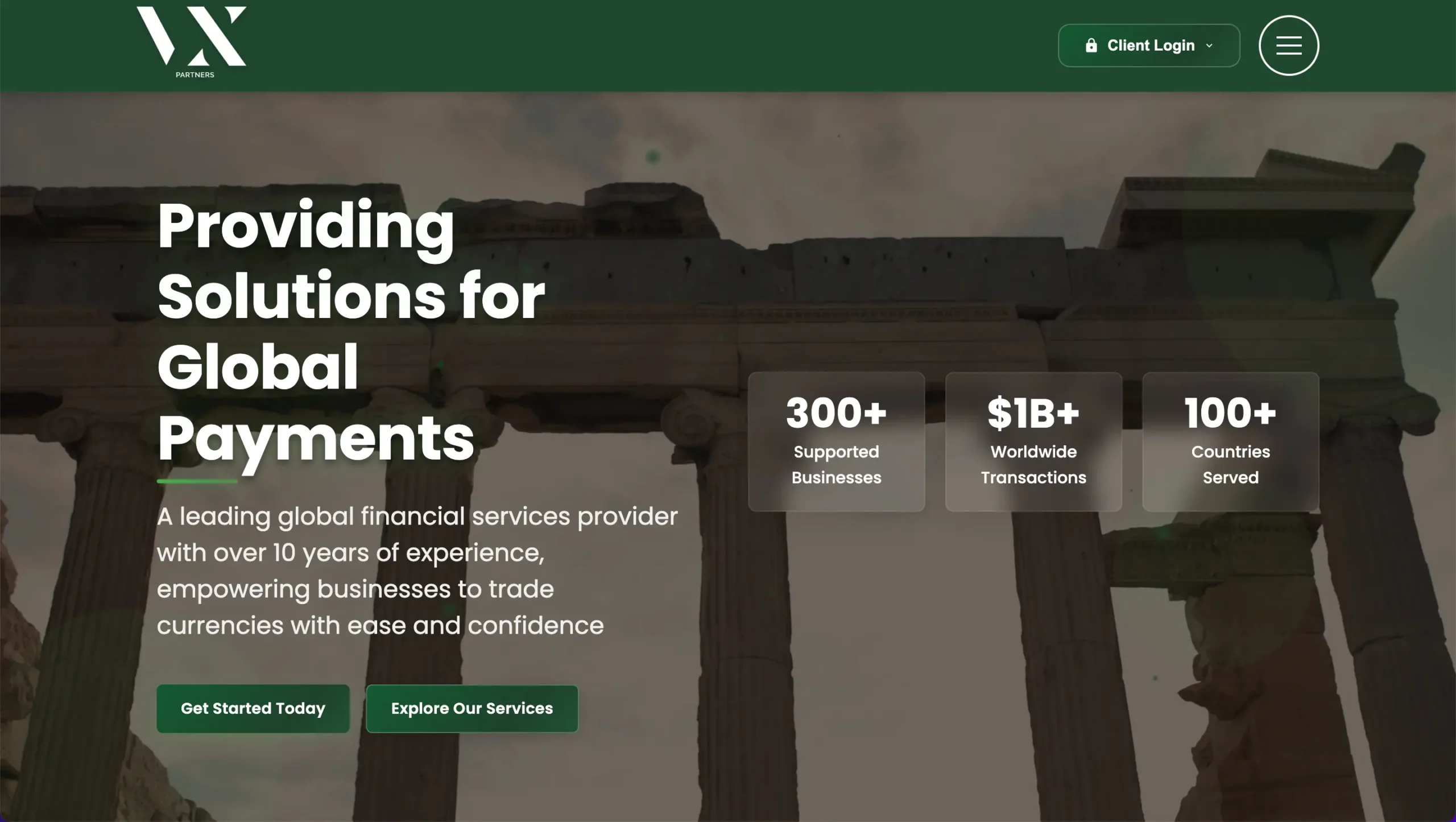
Client projects such as a global financial services provider and a custom furniture manufacturer illustrate two different use cases for flexible theme architecture. One needs complex content structures and data rich pages; the other focuses on high impact imagery and clean product storytelling.
In both cases, choosing a theme that supports fine grained control over templates and reusable patterns makes it easier to keep layouts consistent and technically sound across hundreds of pages. This reduces duplicated code, prevents layout shifts, and simplifies future performance passes.
3. Optimize Core Web Vitals for WordPress
Core Web Vitals focus on three aspects of user experience: loading speed, interactivity, and visual stability. On WordPress, these metrics depend on theme efficiency, image handling, script loading, and server response. Because so many sites share similar stacks, small improvements in configuration can move a large portion of projects into the “passing” category.
As WordPress iterates, updates often include granular performance changes. For instance, one release measured a median Largest Contentful Paint regression of only a few milliseconds, but later versions improved block themes by nearly 19 percent. Monitoring these changes helps you decide when to update and where to focus your next tuning pass.
Practical steps to improve Web Vitals
- Largest Contentful Paint (LCP): Serve images in next-gen formats, preload hero images, and avoid render blocking CSS and JS.
- First Input Delay / Interaction to Next Paint: Audit heavy scripts, defer nonessential JavaScript, and keep plugin bloat low.
- Cumulative Layout Shift (CLS): Always specify width and height for images and embeds, and avoid injecting content above-the-fold late.
Each of these improvements is easier to achieve on a clean, block-based theme with minimal dependencies. It is much harder to fix when dozens of plugins compete to output scripts and styles on every page.
Did You Know?
WordPress CWV performance improved from 30.4% of sites passing in January 2023 to 39.0% passing in 2024, a growth of about 28% year over year.
4. Keep Your Plugin Stack Lean and Performance-friendly
The official WordPress plugin directory alone lists more than 60,000 free plugins, not counting premium options. Every additional plugin you install can add database queries, HTTP requests, and script payloads that slow your site. A key best practice is to treat plugins as infrastructure, not as a quick fix for every minor feature idea.
Before installing anything new, test whether your theme or a small code snippet can solve the problem instead. When you do choose plugins, favor those with active maintenance, strong reviews, and lightweight footprints. Periodically audit your stack and remove anything unused or duplicated.
Example: balancing features and performance
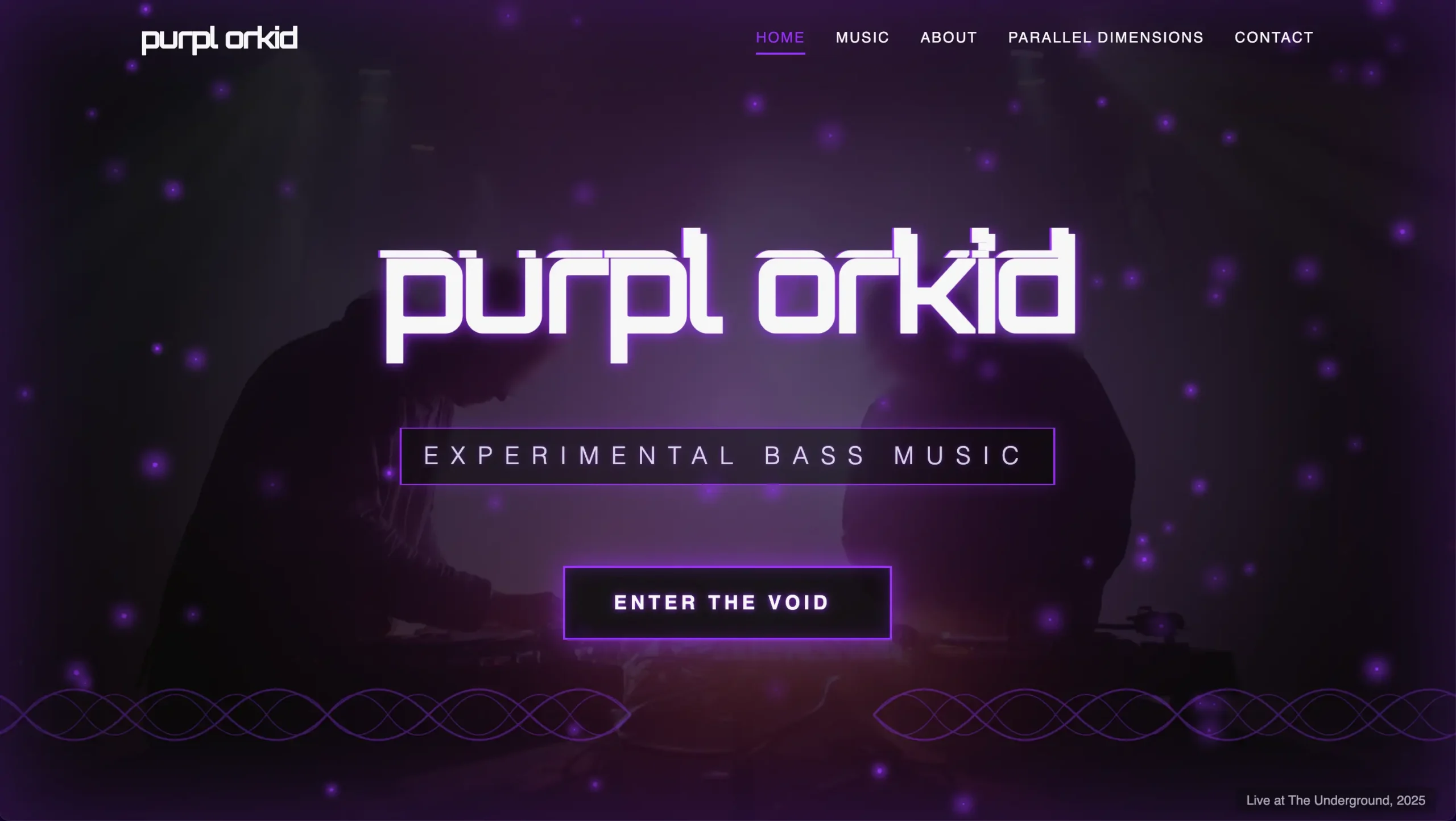
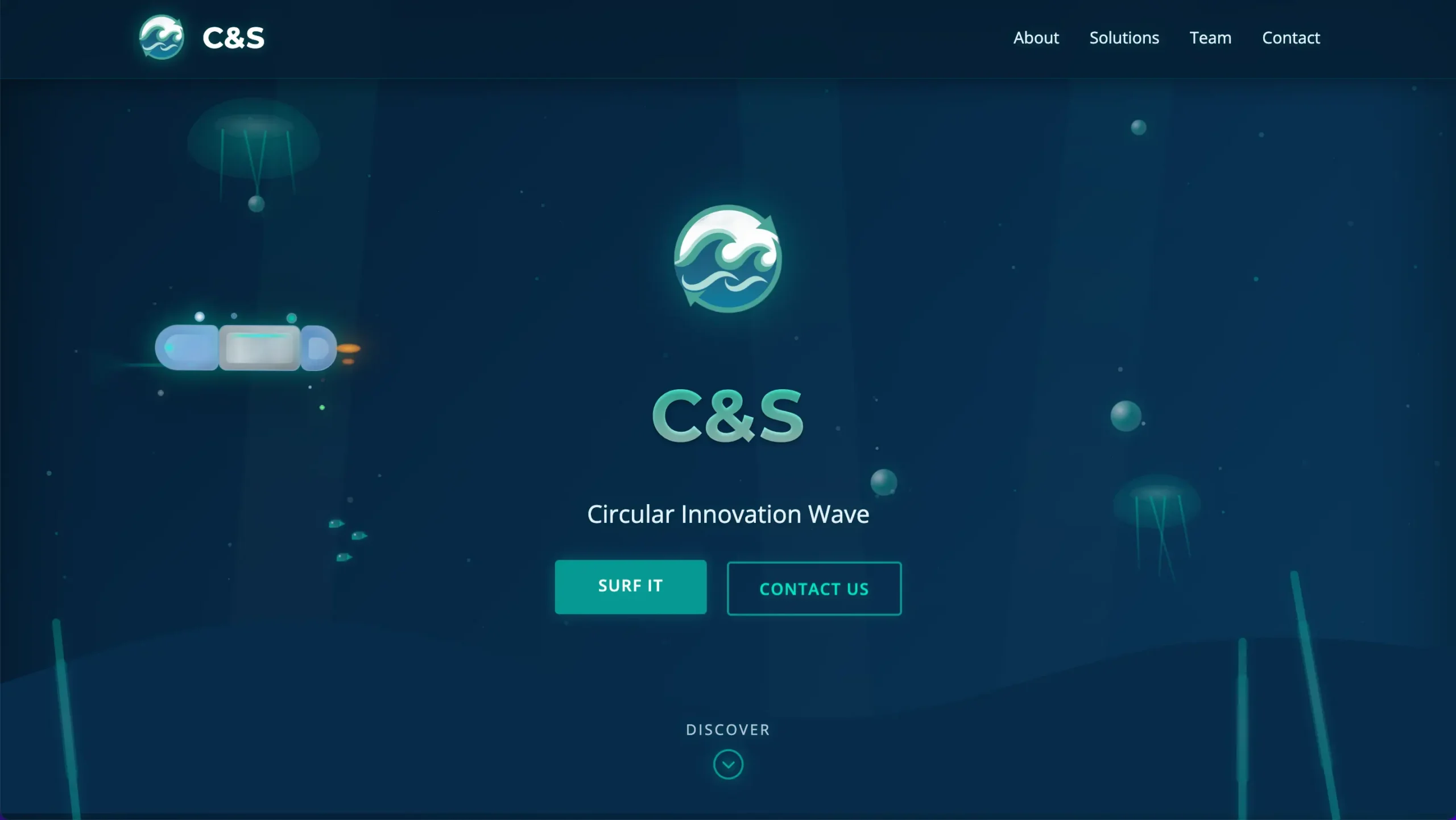
A chef portfolio and a day-and-evening lounge site from the ronny.design portfolio show how feature-rich layouts can still stay light. Both use visual storytelling, interactive sections, and smooth navigation without loading a dozen page builder plugins.
By planning features at the design stage and implementing them through theme options or targeted plugins rather than stacking multiple all-in-one tools, you keep your codebase clean and your performance budget healthy. That discipline pays off on every page view.

5. Structure Your Content for Crawlability and Clarity
A technically sound WordPress site makes it easy for crawlers to discover and understand content. That starts with a logical URL structure, consistent use of heading tags, and a sitemap that reflects your real content hierarchy. It also includes clean internal linking and breadcrumb navigation where appropriate.
Permalink settings should be human readable, usually based on post names or short, descriptive paths. Avoid deeply nested structures that create unnecessary levels in your URL hierarchy. Each content type should have a clear role: pages for evergreen hubs, posts for timely or topical content, and custom post types for structured data such as portfolios or products.
Portfolio structures as a model
The portfolio categories for brands such as custom furniture, resorts, and web apps at ronny.design illustrate how you can group related work under intuitive hubs. Even when a collection page returns a 404, the individual project URLs follow a consistent format that is easy to understand and crawl.
Replicate this thinking in your own site: decide where case studies, blog posts, service pages, and resources live, then keep that structure stable. A consistent naming pattern reduces confusion for both users and technical systems.

6. Optimize Images and Media for Fast Delivery
Media is often the heaviest part of any WordPress page. Large, uncompressed images and auto-playing videos are responsible for many slow loads and poor user experiences. A technical best practice is to treat every asset as part of a performance budget that you can measure and control.
WordPress core has improved image handling significantly, including faster AVIF encoding in recent releases. Combine that with plugins or build pipelines that generate multiple responsive sizes, lazy loading, and modern formats, and you can keep visual quality high while file sizes remain manageable.
Media heavy sites that still load quickly
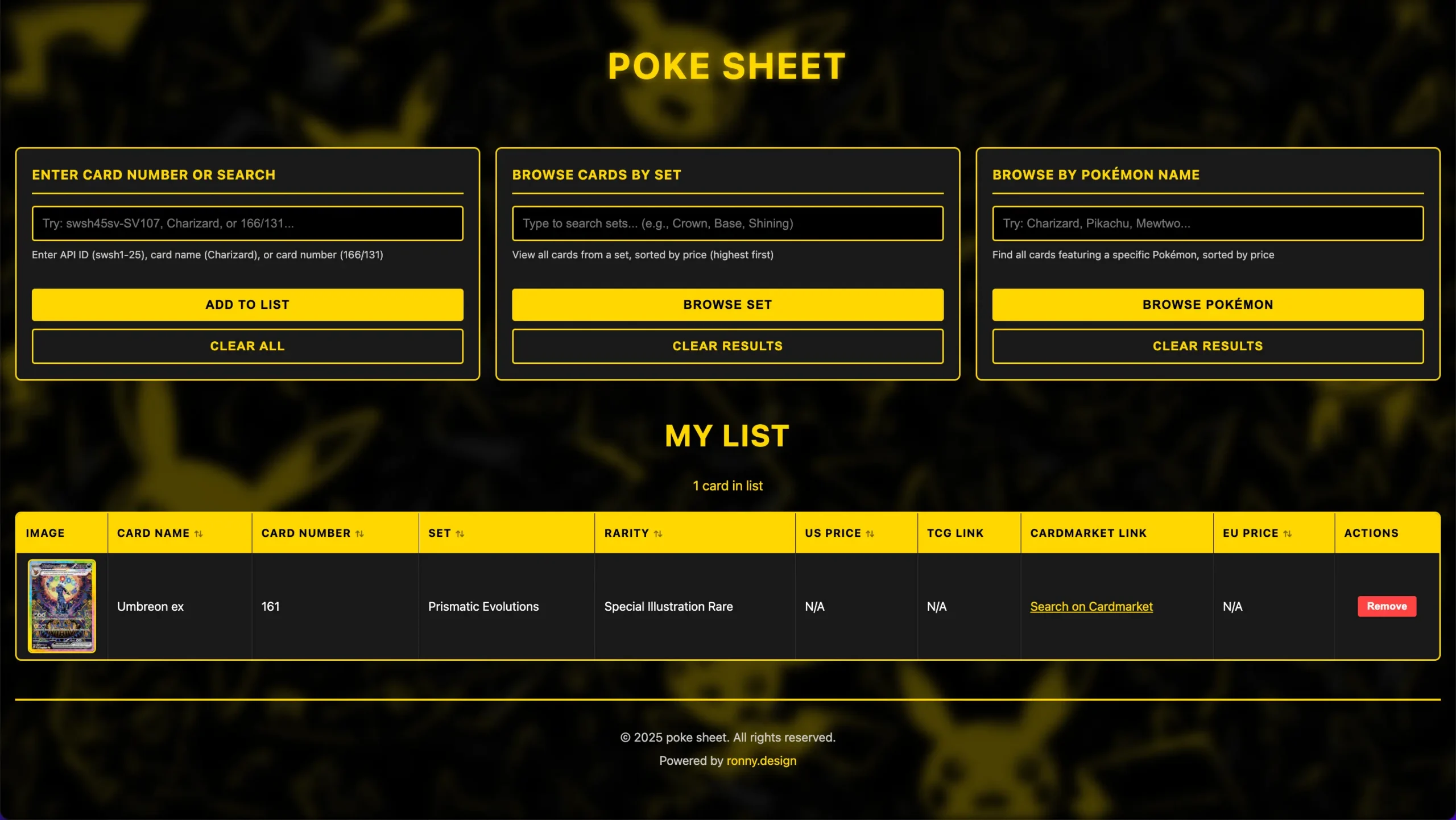
Interior architecture portfolios and card management web apps featured on ronny.design require clear, large visuals to convey their value. At the same time, they need to stay responsive on mobile data connections. Careful cropping, compression, and strategic lazy loading help achieve that balance.
When planning your own media handling, decide which images truly need full resolution and which can be heavily compressed or loaded later on scroll. Always define explicit dimensions to prevent layout shifts, and consider using a content delivery network for frequently accessed media.
7. Configure Caching, Minification, and Server Timing
Even the cleanest WordPress theme generates dynamic pages that must be assembled by PHP and delivered by your web server. Caching plugins and server level caching reduce that work by storing pre-rendered versions of pages and static assets. When configured properly, this significantly lowers Time to First Byte and overall load time.
Use a caching solution that supports page caching, object caching, and browser caching where possible. Combine it with minification and concatenation of CSS and JavaScript, but test changes carefully to avoid breaking layouts or interactivity. Monitor server response times after major WordPress core updates, since some releases can slightly change baseline timings for block and classic themes.
Comparing technical configurations
| Configuration Area | Good Practice | Common Problem |
|---|---|---|
| Page Caching | Cache all public pages, purge on content updates | Cache disabled for logged-out visitors |
| Object Caching | Use Redis or Memcached on dynamic sites | Rely only on database without caching |
| Minification | Minify in production, exclude problematic files | Over-aggressive minification causing JS errors |
| Server Timing | Monitor TTFB and resolve slow plugins/queries | Ignore slow admin-ajax calls and heavy queries |
Did You Know?
As of 2024, WordPress powered about 36% of mobile sites, with roughly 5.7 million of 16 million observed mobile sites running on WordPress.
8. Make Your WordPress Site Mobile-first and Touch-friendly
With WordPress powering more than a third of observed mobile sites, mobile performance and usability are not optional. A mobile-first technical approach means designing and coding with small screens and touch input as the baseline, then enhancing for larger viewports.
On a technical level, this requires responsive layouts, fluid typography, appropriately sized tap targets, and careful control over viewport meta tags and breakpoints. It also means auditing mobile specific performance, since devices on cellular networks and slower processors feel the impact of heavy themes and scripts much more strongly.
Why mobile technical details matter
- Viewport configuration: Always include proper meta viewport tags to prevent zoomed-out or broken layouts.
- Responsive images: Use
srcsetandsizesso mobile devices do not download desktop-resolution assets unnecessarily. - Touch interactions: Avoid hover-only menus and ensure controls have proper spacing for fingers, not just cursors.
Many of the portfolio builds highlighted earlier are browsed primarily on phones, which makes mobile friendly navigation and performance non-negotiable. Adopt that mindset even if most of your testing currently happens on a desktop monitor.

9. Implement Clean URLs, Sitemaps, and Robots Rules
Technical configuration for discoverability on WordPress revolves around three main elements: URLs, sitemaps, and robots rules. Misconfigurations in any of these areas can hide important content or expose low value pages that waste crawl budget and dilute your site structure.
Use a single, consistent protocol and hostname combination, such as always serving content over HTTPS with or without the “www” prefix, but not both. Configure WordPress to generate a sitemap that includes your key content types, and ensure your robots file allows access to that sitemap while blocking admin and system paths that do not need to be crawled.
Checklist for technical discoverability
- Confirm that only one version of each URL is reachable and that redirects are in place for variants.
- Verify that important pages appear in your sitemap and are not set to “noindex” by mistake in any plugins.
- Use robots rules to prevent indexing of test environments, query-heavy search pages, and administrative paths.
A clean, predictable URL and sitemap structure makes it easy for both visitors and automated systems to understand how your content is organized and which pages matter most.
10. Secure, Update, and Monitor Your WordPress Stack
Technical health is not just about speed and structure; it also covers security, reliability, and maintainability. An outdated theme or plugin can introduce vulnerabilities, unexpected downtime, and compatibility issues that damage user trust and waste your optimization efforts.
Keep WordPress core, themes, and plugins updated, but test major updates in a staging environment first. Implement regular backups at both the file and database level, and secure your admin area with strong authentication and limited user roles. Technical monitoring tools can alert you to spikes in response times or error rates before they affect a large portion of your audience.
Ongoing technical maintenance process
- Schedule monthly or quarterly technical audits to review performance metrics, error logs, and plugin usage.
- Document your stack choices and configuration details so future developers can understand and maintain them.
- Use uptime and performance monitoring services to detect slowdowns or outages quickly.
If you manage client sites, this process should be part of your service agreements and internal workflows rather than handled only when something breaks.
11. When to Bring in a WordPress Technical Specialist
Some technical improvements, such as switching caching plugins or compressing images, are accessible to most site owners. Others, like refactoring a heavy classic theme into a modern block-based system or debugging complex database queries, require deeper experience with WordPress internals and custom development.
A specialist who works daily with WordPress, React, and performance focused builds can help you design a sustainable architecture, avoid common pitfalls, and prioritize the fixes that matter most. This is particularly valuable for high traffic sites, custom web apps, or brands operating in competitive markets where downtime and slow performance are costly.
What to look for in a specialist
- Hands-on experience with real WordPress and web app projects, not just theme demos.
- Comfort with both design and engineering, so visual choices support technical best practices.
- A structured process for discovery, planning, implementation, and maintenance.
Reviewing detailed backgrounds and project histories, like those shared on personal portfolio sites, helps you assess whether someone brings the right mix of strategic and technical skills to your project.
Conclusion
Technical best practices on WordPress are not one-time tweaks but an ongoing way of working with your site. A strong foundation, lean plugin stack, efficient theme architecture, optimized media, and disciplined caching strategy all work together to keep pages fast, stable, and easy to understand for both users and automated systems.
As core continues to evolve and more WordPress sites adopt modern block themes and performance improvements, the gap between technically sound sites and neglected ones will only grow. By following the practices in this guide and, when needed, collaborating with experienced WordPress specialists, you can keep your site on the healthy side of that divide and focus your energy on content and business goals rather than constant technical firefighting.